WordPress 7.1 is here and there’s quite a bit to like
Released on August 19, 2026, WordPress 7.1 is the second major WordPress release of the year. It puts a strong emphasis on responsive design, media handling, collaboration, accessibility, and a more consistent editing experience.
Some of the improvements are immediately noticeable in the admin area, while others are more interesting under the hood, strengthening the underlying tools and APIs that developers rely on.
For site owners and development teams, the release brings useful new capabilities, but it also introduces changes that may interact differently with existing themes, plugins, and custom workflows. That makes testing on staging especially important before updating a production site.
WordPress 7.1 at a glance
- Major design change: Responsive block styling directly in the editor
- New blocks: Tabs and Playlist
- Media improvements: Browser-based image processing and expanded format support
- Collaboration: Rich-text Notes, @mentions, and more precise comments
- Developer changes: Expanded editor and API capabilities
- Accessibility: Improved navigation, labeling, screen reader behavior, and tooltips
More than 800 contributors participated in the release.
Let’s look at the key changes in WordPress 7.1 and what you should test before pushing the update to production.
Responsive design gets much more powerful
Responsive design has long been one of the areas where WordPress still leaned heavily on custom CSS, theme-specific controls, or additional plugins.
WordPress 7.1 starts changing that.
Responsive block styling
You can define how blocks appear at different screen sizes through both Global Styles and individual block settings.
This gives site builders more control over responsive layouts without leaving WordPress or manually writing CSS.
For designers and content teams, that should make common responsive adjustments easier to manage.
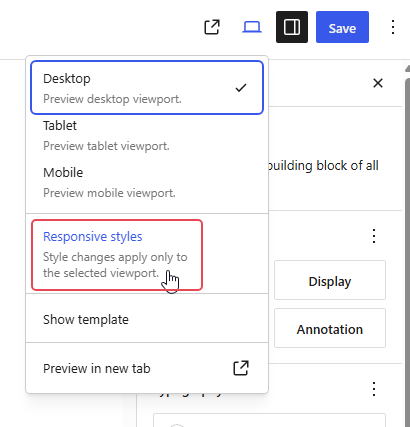
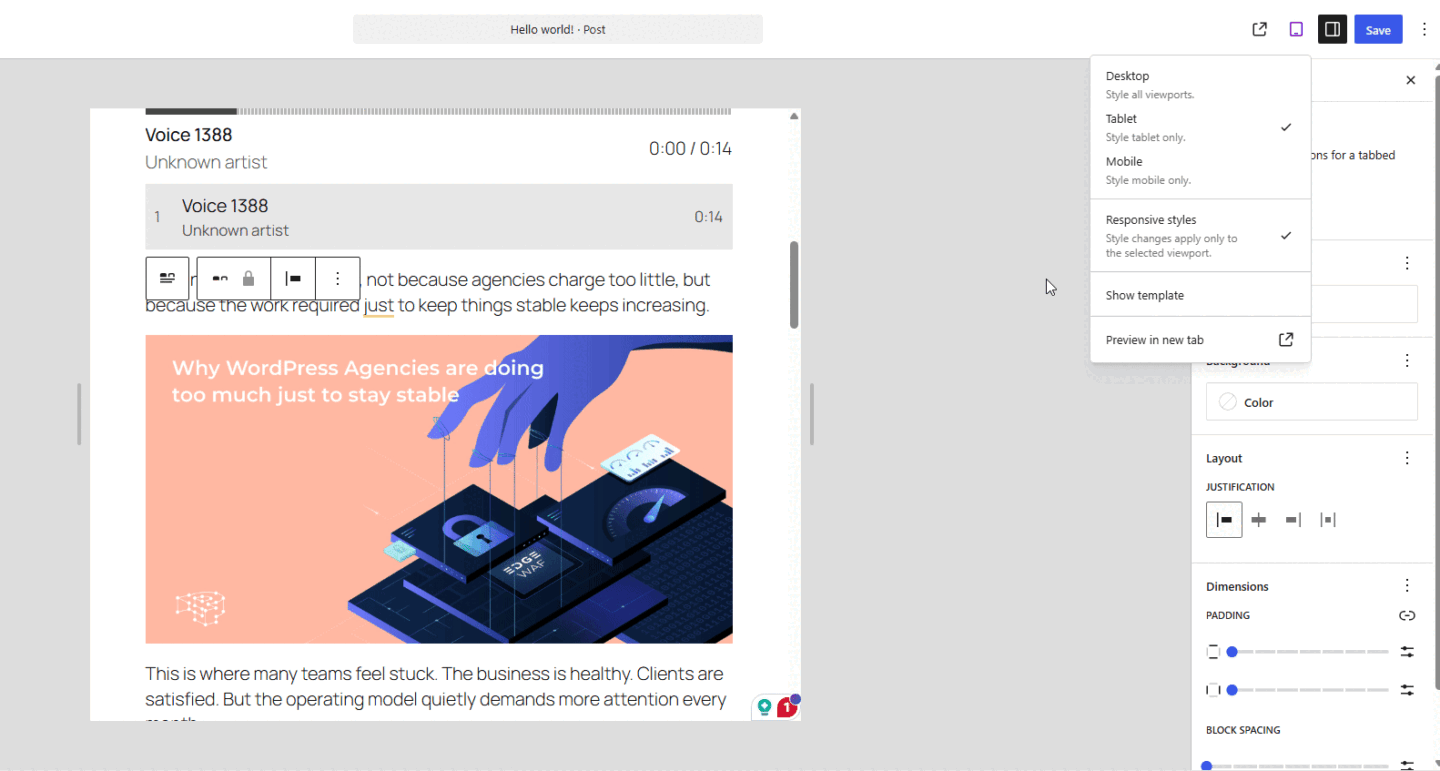
For theme developers, this could reduce the need for custom media queries and theme-specific responsive controls. By bringing responsive settings into WordPress’s standard design system, themes can provide more consistent behavior while giving users greater control through the editor.
Custom responsive breakpoints
Themes can also define their own mobile and tablet breakpoints through theme.json.
Instead of relying only on WordPress defaults, developers can configure breakpoints that better match the needs of a particular design system. Responsive styling and block visibility can then follow those values automatically.
This gives theme developers more control while keeping responsive behavior integrated with WordPress itself.
Interactive styles without custom CSS
WordPress 7.1 also expands visual controls for interactive states.
The Button and Navigation Link blocks can be styled for states such as hover, focus, and active directly from the editor.
Previously, these kinds of changes commonly required custom CSS.
On its own, that might sound like a small improvement. But putting it together with responsive styling and custom breakpoints, the direction becomes pretty clear: more of the everyday design work that once required CSS is moving directly into Core.
Image Handling Gets a Serious Upgrade
WordPress 7.1 introduces a redesigned media editing workflow.
The old inline cropping experience has been replaced with a dedicated media editor that brings several image operations together in one interface.
You can:
- Crop images freely or using predefined aspect ratios
- Flip images
- Apply precise rotation
- Edit image metadata
The familiar Crop action remains, but it now opens the dedicated editor.
Useful? Definitely. But the more significant change happens behind the interface.
Image processing can now happen before upload
WordPress 7.1 moves image compression, resizing, and thumbnail generation into the browser, before it reaches the server, where it was handled traditionally.
Moving supported operations into the browser means large image uploads are less dependent on available PHP memory and server processing time.
That can be particularly useful for media-heavy sites or editorial teams regularly uploading large images.
It also reduces the amount of CPU and memory the server needs to dedicate to supported image-processing tasks.
For media-heavy WordPress sites, this is a genuinely interesting architectural change. Instead of asking PHP to do all the heavy lifting after every upload, WordPress can offload part of that work to the device that is already holding the image.
WordPress 7.1 also adds built-in support for:
- AVIF
- HEIC
- HDR gain maps
The update makes WordPress better equipped to handle image formats increasingly produced by modern devices and workflows.
Collaboration gets more useful with improved Notes
Notes are also starting to feel like a proper collaboration feature rather than a simple commenting layer.
Notes now support rich-text formatting, including:
- Bold
- Italic
- Code
- Links
👉 Comments can be attached to a specific selection of text instead of only an entire block.
👉 You can also type @ to mention another collaborator directly.
Mentions can trigger email notifications, helping bring the right person into a discussion without having to move the conversation into a separate collaboration tool.
WordPress 7.1 additionally allows multiple conversations on the same block and lets you collapse long Notes to keep the editing interface more manageable.
No, this still isn’t Google Docs-style real-time collaboration. But for agencies, publishers, and content teams already working inside WordPress, Notes just became considerably more useful.
New Tabs and Playlist blocks
WordPress 7.1 introduces two new content blocks.
Tabs block
The new Tabs block lets you divide information into separate tabbed panels instead of displaying everything at once.
Possible uses include:
- Product information
- Documentation
- Feature descriptions
- Frequently asked questions
- Course content
- Pricing information
For relatively simple tabbed interfaces, this could reduce the need for a dedicated third-party block or plugin. And we’re always happy to see Core eliminate another reason to install a utility plugin for something this basic.
Playlist block
The Playlist block lets you add a collection of audio files to a page or post, also allowing you to customize the artist, album, title and image for each song.
It can also display an optional waveform showing the visual shape of each track during playback.
The block could be useful for podcasts, musicians, educational content, archives, and other sites publishing multiple audio files.
It is more specialized than Tabs, but for the right type of site it could remove another piece of custom or plugin-based functionality.
The admin bar becomes more consistent
WordPress 7.1 keeps the admin bar available across editors, creating a more consistent experience as users move between administration and editing interfaces.
Is this the feature anyone is going to upgrade to 7.1 for? Probably not. But if you spend hours moving between the editor and wp-admin, it’s exactly the kind of small UX improvement you’ll notice every day.
Plugin developers who extend or modify the admin bar might want to include those integrations in their WordPress 7.1 compatibility testing.
Accessibility continues to improve
WordPress 7.1 includes accessibility improvements across WordPress Core and Gutenberg.
The release focuses on areas including:
- More predictable screen reader behavior
- Improved labeling in the WordPress admin
- Better editor navigation
- Improved keyboard interaction
- More accessible contextual information
A new accessible tooltip API also gives developers a standardized way to provide additional information through interface elements.
Rather than accessibility being treated as one isolated feature, these improvements continue the broader effort to make the WordPress administration and editing experience more accessible.
What developers should pay attention to
Not everything interesting in WordPress 7.1 comes with a shiny new button.
Some of the changes developers should care about most are happening underneath the editor, and this is where compatibility testing starts to matter.
Plugin and theme developers should review their integrations carefully, particularly where they interact directly with the editor, styles, media workflows, or newer WordPress APIs.
Test editor integrations
If your plugin or theme adds:
- Custom blocks
- Editor panels
- Meta boxes
- Editor CSS
- JavaScript that interacts with the editing interface
test those features carefully with WordPress 7.1.
Changes to the structure of the editing environment can expose assumptions in older plugins and custom integrations.
For example, CSS or JavaScript that relies on a particular editor structure or direct access to part of the editing canvas may no longer behave as expected as WordPress continues to isolate and standardize the canvas.
If you maintain custom editor integrations, don’t assume that testing is complete just because the editor still opens.
Test creating, editing, saving, and publishing content, along with every custom integration, before deploying WordPress 7.1 to production.
Custom icon support
Plugin and theme developers can now register custom icon sets and make them available alongside WordPress’s built-in icons.
This gives developers a more standardized way to use their own icon systems throughout WordPress interfaces.
For block libraries and more heavily customized editing environments, this can make branding and interface consistency easier to manage.
Abilities and integrations
WordPress also continues to develop its APIs for exposing and executing application capabilities.
These changes are particularly relevant to developers building integrations, automation, and tools that need a structured way to discover what WordPress can do.
They are also part of the technical foundation being developed for future AI-powered WordPress integrations.
What to test before upgrading to WordPress 7.1
WordPress Core may be ready for production, but your site also depends on its theme, plugins, custom code, payment systems, and integrations. Test WordPress 7.1 in staging before updating a business-critical production site.
1. Confirm that you have a recent backup
Make sure you have a known-good restore point before updating WordPress Core.
2. Update a staging environment first
Run the WordPress 7.1 update against a staging copy of the site before changing production.
This is particularly important for:
- WooCommerce stores
- Membership websites
- LMS platforms
- High-traffic publications
- Sites with extensive custom development
3. Test the editor
Create and edit several representative pages.
Pay particular attention to custom blocks, editor extensions, legacy meta boxes, and plugins that inject their own CSS or JavaScript into the editor.
4. Check responsive layouts
Test important pages across desktop, tablet, and mobile viewport sizes.
Sites using custom theme.json configurations or their own breakpoint logic deserve additional attention.
5. Test image workflows
Upload, resize, crop, and publish several representative images.
If your editorial workflow uses large files or less common image formats, include those in your testing.
6. Test business-critical functionality
A green homepage is not a compatibility test. Test the workflows your users -and your revenue- actually depend on.
- Forms
- Search
- User authentication
- Account areas
- WooCommerce carts and checkout
- Payment gateways
- Membership functionality
- API integrations
- Custom application features
7. Review errors and logs
Check PHP errors, browser console messages, and application logs after the update.
Compatibility problems are not always immediately visible on the front end.
Should you update to WordPress 7.1?
For most actively maintained WordPress sites, WordPress 7.1 is an update worth planning for.
It gives site builders more native control over responsive design, improves media and collaboration workflows, and continues WordPress’s progress on accessibility and developer APIs.
What 7.1 does well is remove friction in places WordPress users deal with every day, while continuing to modernize the architecture underneath the platform.
We like that direction.
But as always, don’t test in production. Update staging, test your theme and plugins against the workflows that matter, check your logs, and only then roll 7.1 onto the live site.
Start Your 14 Day Free Trial
Try our award winning WordPress Hosting!