Securing a WordPress site against malware requires more than a single plugin or security setting. Effective protection combines secure WordPress practices, reliable backups and monitoring, a properly protected hosting environment, and firewall protection that can stop malicious traffic before it reaches your site.
These controls work at different layers. WordPress-level measures reduce application risk, your hosting environment protects the underlying infrastructure, and an upstream Web Application Firewall (WAF) can filter malicious requests before they reach WordPress.
This guide explains the practical steps you can take to reduce malware risk, recognize signs of compromise, and recover safely if your WordPress site is infected.
How to secure a WordPress site: essential checklist
To reduce the risk of malware on a WordPress site, focus on preventing common entry points, protecting administrator access, monitoring for suspicious activity, maintaining recoverable backups, and filtering malicious traffic.
- Keep WordPress, plugins, and themes updated. Apply security updates promptly and replace software that is no longer maintained.
- Use software from trusted sources. Avoid nulled, pirated, or otherwise untrusted plugins and themes.
- Remove unnecessary software and access. Delete unused plugins, themes, and user accounts.
- Protect administrator accounts. Use strong, unique passwords, enable two-factor authentication, and limit administrator privileges.
- Use appropriate firewall protection. A WAF can block malicious requests before they reach WordPress, especially when it operates upstream at the hosting or Edge layer.
- Monitor for signs of compromise. Watch for known vulnerabilities, suspicious logins, unexpected file changes, new administrators, and unusual redirects.
- Maintain reliable backups. Back up both files and the database, keep multiple restore points, and verify that they can be restored.
No single control can secure a WordPress site on its own. Effective protection combines application security, monitoring, recoverable backups, and infrastructure or Edge-level defenses.
What is malware and how does it affect WordPress?
Malware is software or code designed to perform unauthorized or harmful actions. On a WordPress site, it may steal data, inject spam or phishing content, redirect visitors, modify files, create unauthorized administrator access, or give an attacker persistent access.
Common ways malware appears on WordPress sites include:
- Backdoors, which allow attackers to regain access after the original vulnerability has been fixed.
- Malicious or modified plugins and themes, which introduce unauthorized code.
- SEO spam, which injects pages, links, or content intended to manipulate search results.
- Phishing code, which creates fake pages or forms designed to capture sensitive information.
- Redirect malware, which sends visitors to malicious or unwanted websites.
Malware is usually the consequence of a security weakness, not the weakness itself. Attackers may gain access through vulnerable software, compromised credentials, malicious third-party code, insecure configuration, or weaknesses in the hosting environment.
A compromise can expose data, disrupt availability, damage search visibility, trigger security warnings, and undermine visitor trust. That is why effective WordPress security includes both prevention and early detection, as well as a reliable recovery path if a compromise occurs.
How to tell if your WordPress site may be infected
WordPress malware is not always obvious. Some infections visibly change the site, while others are designed to remain hidden.
Signs worth investigating include:
- Unexpected redirects, pop-ups, or unfamiliar content
- Spam pages, links, or search results you did not create
- Unknown administrator accounts or unexplained account changes
- Unexpected file changes, including unfamiliar PHP files or scripts
- Security warnings from Google, browsers, your host, or security tools
- Unexpected changes to site behavior or access, such as login problems or configuration changes
None of these signs proves that the site contains malware. Confirm a suspected compromise using multiple sources of evidence, such as file changes, user accounts, malware scans, and security or server logs.
If Google reports a problem, check the Google Search Console Security Issues report.
If you find strong evidence of compromise, follow the incident-response steps in What to do if your WordPress site is infected with malware rather than deleting suspicious files at random.
How to protect WordPress against malware
Effective malware prevention starts with reducing common entry points and making sure you can detect and recover from a compromise.
1. Keep WordPress, plugins, and themes updated
Security updates often fix known vulnerabilities, so keep WordPress core, plugins, and themes current.
- Apply security updates promptly.
- Replace abandoned or unsupported plugins and themes.
- Remove software you no longer use; deactivating it does not remove its files.
- Keep a recent backup before significant updates.
- Test major changes in staging when compatibility is important.
WordPress supports automatic updates, but behavior varies by component and configuration. Do not assume every plugin, theme, or major WordPress release will always update automatically.
2. Protect WordPress accounts and logins
Compromised administrator credentials can give an attacker extensive control over a site.
- Use strong, unique passwords. A password manager can help you generate and store them.
- Enable two-factor authentication (2FA) for privileged accounts using a reputable plugin or identity provider.
- Limit administrator access. Give users only the permissions they need.
- Remove unused accounts and review privileged users regularly.
- Protect against automated login attacks with rate limiting or appropriate WAF controls for brute-force attacks and credential stuffing.
Changing the default WordPress login URL may reduce automated probing, but strong authentication and traffic controls provide more meaningful protection.
3. Use malware scanning and file-integrity monitoring
Malware scanning can help detect malicious code, unexpected file changes, and other signs of compromise. Depending on the tool, scans may cover WordPress files, the database, or changes to core components.
Scanning is only one part of the security stack. It is important to distinguish it from related controls:
- Malware scanning and file-integrity monitoring look for malicious or unexpected changes already present on the site.
- A Web Application Firewall (WAF) filters incoming requests and can block certain attacks before vulnerable code is reached.
- Vulnerability monitoring identifies WordPress core, plugins, or themes with known security issues.
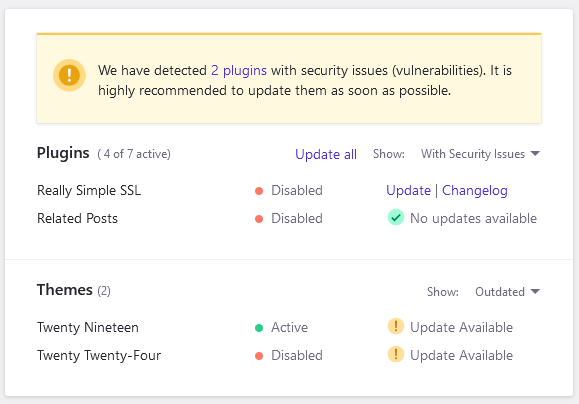
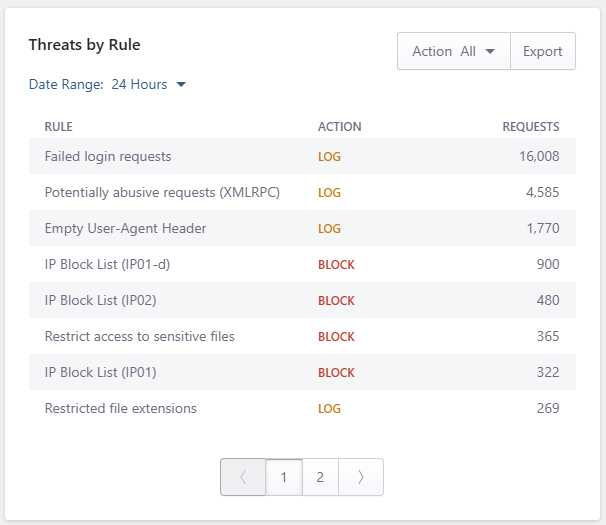
Some products combine these functions, but no scanner should be treated as the site’s only defense.
Where available, firewall protection can operate upstream from WordPress. For example, Pressidium EDGE firewall controls are applied at the Edge before requests reach the origin infrastructure.
4. Maintain reliable, recoverable backups
Backups provide a recovery path, but they must include everything needed to restore the site.
- Back up both the database and website files.
- Keep multiple restore points because a recent backup may already contain an infection.
- Store backups separately from the live site.
- Choose a backup frequency appropriate to how often the site changes.
- Verify that backups can actually be restored.
If malware is discovered, restore from a known-clean backup created before the compromise whenever possible. A restore does not fix the vulnerability or compromised credentials that caused the infection, so close the original entry point before returning the site to normal operation.
Pressidium Managed Hosting customers can review Backup management for the available backup and restore options.
Build long-term WordPress security
WordPress security is an ongoing process. Beyond updates, account protection, monitoring, and backups, review how your site handles file access, exposed services, encrypted connections, and security signals over time.
Use appropriate file permissions
File permissions control who can read, modify, or execute files and directories. There is no single permission scheme that fits every hosting environment because ownership, web-server configuration, and PHP execution differ.
Follow the principle of least privilege: files should be writable only by the users or processes that need access. Avoid applying recursive permission changes without understanding your server configuration.
If you manage your own server, review the official WordPress file-permissions guidance. Incorrect permissions can expose files or prevent the site from working correctly.
Protect XML-RPC based on how your site uses it
xmlrpc.php can be targeted by automated authentication attacks, but some integrations may still depend on XML-RPC.
- If your site does not need XML-RPC, disable or block it.
- If it is required, protect it with rate limiting or appropriate WAF controls rather than disabling it blindly.
- Monitor repeated authentication failures and filter abusive traffic upstream where possible.
Use HTTPS across your WordPress site
HTTPS encrypts traffic between visitors and your site, helping protect logins, administrative sessions, forms, and other sensitive data. WordPress strongly recommends HTTPS for both visitors and administrators.
HTTPS does not detect malware, patch vulnerable software, prevent compromised credentials from being used, or replace a WAF and security monitoring.
Monitor for signs of compromise
Monitoring is not something you do only when you suspect an infection. Keep watching for security changes over time.
- Known vulnerabilities in WordPress core, plugins, and themes
- Suspicious authentication activity and security-log events
- Findings in the Google Search Console Security Issues report
- Unexpected file, administrator-account, or configuration changes
No single alert proves that a site is infected. Investigate unexpected changes using multiple sources of evidence.
What to do if your WordPress site is infected with malware
If you suspect a compromise, avoid making random changes. Focus on limiting harm, preserving useful evidence, identifying the entry point, removing the compromise, and preventing reinfection.
1. Restrict public access if the site is harming visitors
If the site is serving malware, phishing pages, or malicious redirects, temporarily restrict public access while you investigate.
Where possible, use controls provided by your hosting platform, reverse proxy, or firewall. A WordPress maintenance-mode plugin may hide normal content, but it does not contain an attacker or stop malicious code from running.
2. Document what happened
Before cleaning the site, record what you observed and when. Note suspicious redirects, new administrator accounts, security alerts, unexpected file changes, recent software or configuration changes, and actions already taken.
Preserve a copy or snapshot of the compromised environment if you can do so safely. It may help identify how the attack occurred. See WordPress.org’s FAQ: My site was hacked for additional recovery guidance.
3. Determine the scope
Check more than one source of evidence:
- WordPress core, plugin, and theme files
- The database and administrator accounts
- Access, server, and security logs
- Recently installed or modified software
- Known vulnerabilities in installed components
- Other sites sharing the same environment
If credential theft is possible, also check the devices used to administer the site. Finding one malicious file does not mean you have found the full compromise.
4. Find and close the entry point
Identify what most likely allowed the attacker in, such as a vulnerable or abandoned plugin, outdated software, compromised credentials, or insecure configuration.
Update, replace, remove, or reconfigure the affected component. If you cannot determine the cause confidently, involve your hosting provider or a qualified WordPress security professional.
5. Clean or restore the site
Remove malicious files, injected database content, unauthorized users, and backdoors identified during the investigation.
If available, restoring a known-clean backup from before the compromise may be safer than repairing every modified file manually. However, restoring a backup does not close the original vulnerability, so fix the entry point before returning the site to normal operation.
6. Rotate credentials and revoke access
Rotate any credentials that may have been exposed, including relevant WordPress administrator, hosting, SFTP/SSH, database, API, and application credentials.
Remove unfamiliar accounts and revoke existing sessions or access where appropriate.
7. Update, verify, and monitor
After cleanup:
- Update WordPress core, plugins, and themes.
- Remove software and accounts you no longer need.
- Confirm important pages, forms, logins, and administrative functions work normally.
- Run another malware and integrity scan.
- Monitor logs, security events, file changes, and accounts for reinfection.
If Google detected the compromise, check the Search Console Security Issues report and request a review after all reported issues have been resolved.
Repeated infections can indicate that the original entry point, a hidden backdoor, or compromised access has not been fully addressed.
WordPress security works at more than one layer
WordPress security is not limited to settings inside the Dashboard. Different controls operate at the application, hosting, and Edge layers, and each addresses different risks.
What you can secure inside WordPress
Application-level security includes keeping WordPress and its components updated, protecting privileged accounts, limiting unnecessary software and access, and monitoring for vulnerabilities or unexpected changes.
These measures reduce the WordPress attack surface, but they cannot secure the underlying server or filter all traffic before it reaches the application. For broader guidance, see the official WordPress security and hardening documentation.
What the hosting environment controls
The hosting or origin layer controls the environment in which WordPress runs. Depending on the hosting model, this can include server and database configuration, filesystem ownership, network access, logs, backups, infrastructure updates, and server-side malware monitoring.
With self-managed infrastructure, many of these responsibilities are yours. A managed host may handle some or most of them.
What an Edge or WAF layer can stop before origin
An upstream Web Application Firewall operates before the hosting server. It can inspect and filter incoming requests before they reach WordPress or consume origin resources.
Depending on the service, this layer may help mitigate malicious request patterns, automated attacks, brute-force and credential-stuffing traffic, bots, DDoS attacks, and unwanted IP or geographic traffic.
It does not replace WordPress updates, secure account management, malware monitoring, or backups.
Pressidium EDGE is an example of this architecture: traffic is processed at the Edge before reaching the origin, allowing WordPress-aware firewall and traffic controls to act before requests reach the hosting infrastructure.
Strong WordPress security combines appropriate controls across all three layers rather than relying on a single plugin, host, or firewall.
How Pressidium helps secure WordPress sites
Pressidium Managed WordPress Hosting combines WordPress-specific security with managed infrastructure and Pressidium EDGE, so protection operates across the application, hosting, and Edge layers.

EDGE WAF and traffic protection
Pressidium EDGE processes traffic before it reaches the WordPress origin. Its Web Application Firewall can filter malicious requests upstream, while the Dashboard provides visibility into firewall activity, threats, bots, and vulnerable WordPress components.

Malware monitoring and cleanup
A WAF reduces malicious traffic reaching WordPress, but it does not replace malware detection. Pressidium Managed Hosting also provides malware monitoring and cleanup for malicious code found within hosted WordPress sites.

Managed WordPress updates
Pressidium manages WordPress core updates as part of the hosting platform. You should still keep plugins and themes actively maintained and updated because vulnerabilities can occur anywhere in the WordPress application stack.
Backups and recovery
Pressidium provides immediately available Instant backups and off-site Full backups for disaster recovery. See Backups management for current backup and restore options.
Keep in mind that backups help with recovery, but they do not remove the vulnerability or compromised access that caused an infection.
Get WordPress security built into your hosting
Pressidium Managed WordPress Hosting combines WordPress-specific security with managed infrastructure and Pressidium EDGE protection, reducing the need to assemble and maintain separate security tools yourself.
-
 Proactive malware monitoring and cleanup
-
Managed WordPress core updates and automated backups
-
Pressidium EDGE WAF and traffic protection before requests reach your origin